How to Install a Smart Screen in Your Toyota Tundra
Introduction
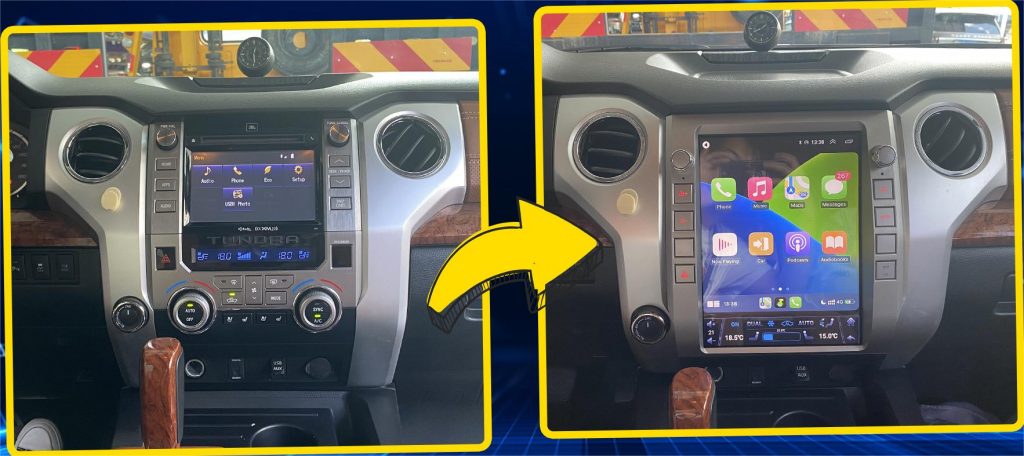
The Toyota Tundra is one of the most reliable and powerful full-size pickup trucks on the road. However, even with its rugged exterior and dependable engine, its factory-installed infotainment system often lacks the modern smart features that today’s drivers expect. If you’re a Tundra owner seeking a smoother, more connected driving experience, upgrading to a smart Android car stereo system is one of the best decisions you can make.
This guide will walk you through the complete process of installing a smart screen in your Toyota Tundra (especially 2014–2018 models). We’ll cover essential tools, step-by-step installation procedures, CANBUS setup for system compatibility, and highlight real-world benefits like CarPlay, Android Auto, GPS, and more. Whether you’re a seasoned DIY installer or a first-timer, this blog offers a detailed, visual roadmap to make your upgrade smooth and rewarding.
Need guaranteed fitment and expert tech support? Visit carmp5.com for curated Tundra-compatible smart head units. For premium-grade options, check out ikagoo.com. For warranty or repair needs, FixMyDash offers trusted after-sales services.
Product Highlights: Why Upgrade?
- Wireless CarPlay & Android Auto: Seamless smartphone integration without cords.
- Built-in GPS & Navigation: Offline/online maps, real-time route planning.
- Bluetooth 5.0: High-speed, low-latency audio streaming and hands-free calls.
- AM/FM/RDS Radio: Regionally adaptive radio support.
- DSP Audio Processing: Enhanced sound customization with EQ adjustment.
- AHD Backup & 360° Cameras: Safer parking with multi-angle views (camera kits sold separately).
- IPS Touch Display: Wide-angle, anti-glare capacitive touchscreen with ultra-fast response.
- Multilingual Interface: Supports English, Spanish, French, Arabic, German, Portuguese, Russian, etc.
Still considering your options? Check out this article for deeper insights on choosing the best Android car stereo for long adventures.
Installation Preparation: Tools & Tips
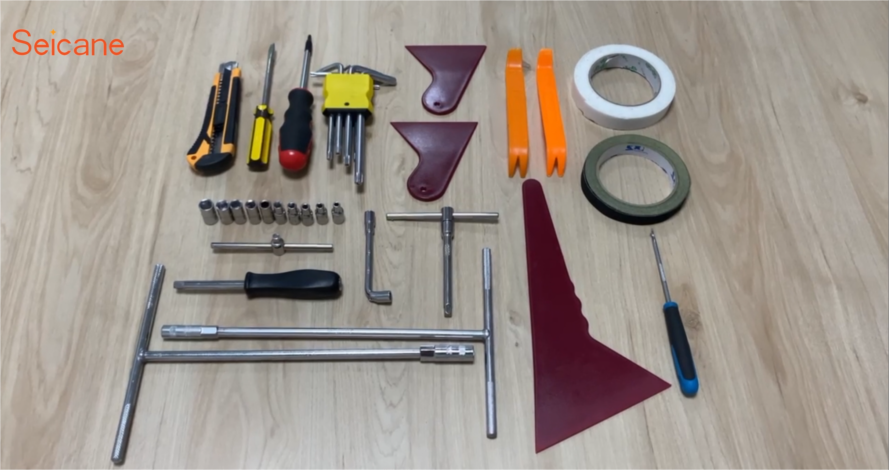
- Plastic trim removal tools
- Phillips screwdriver
- Electrical tape or zip ties
- Flashlight or headlamp
- Optional: multimeter
Safety tip: Always disconnect your vehicle’s battery before beginning installation to prevent short-circuits or damage.
Step-by-Step Installation Guide
Step 1: Remove the Dashboard Panel
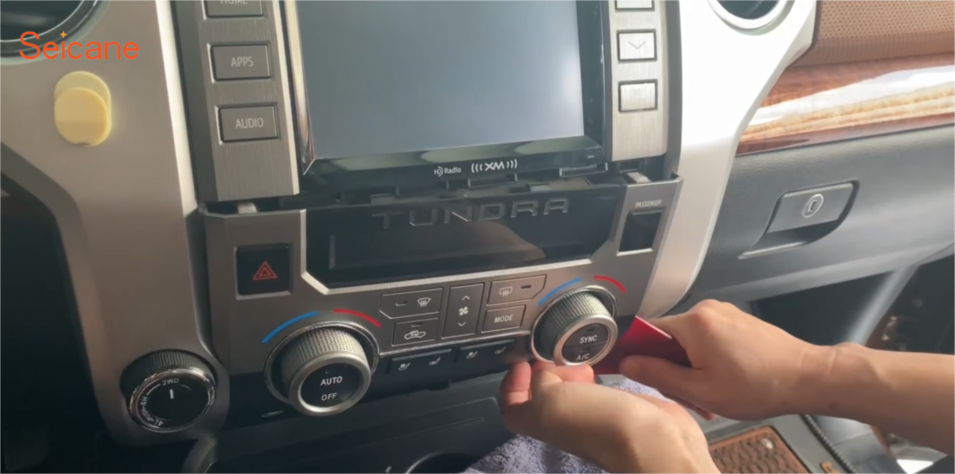
Use the plastic trim tool to gently pry around the dashboard panel. Start from the bottom corners and work your way up to carefully detach the clips. Remove the AC control panel and unplug the wiring behind it.
Step 2: Detach the Factory Head Unit
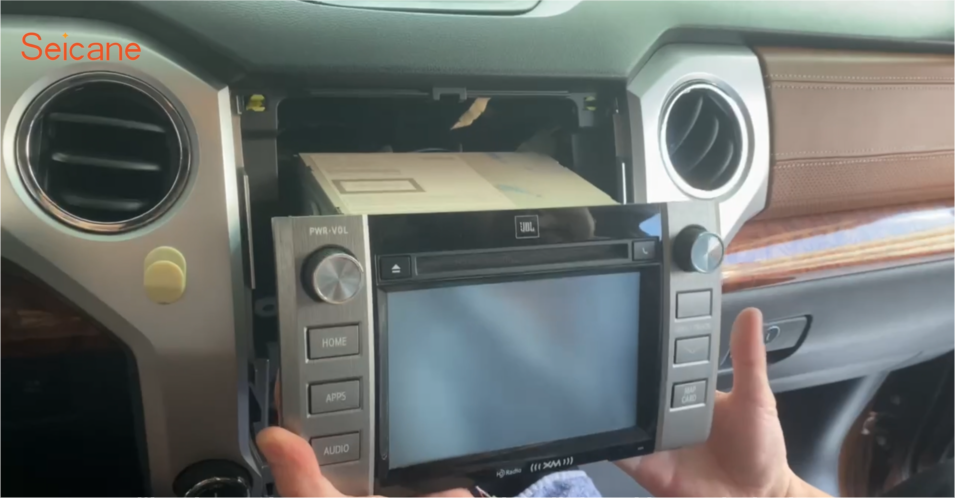
Unscrew the four bolts securing the factory stereo. Carefully slide the unit out and disconnect all harnesses, including radio antenna, power, and speaker lines.
Step 3: Connect the Power Harness
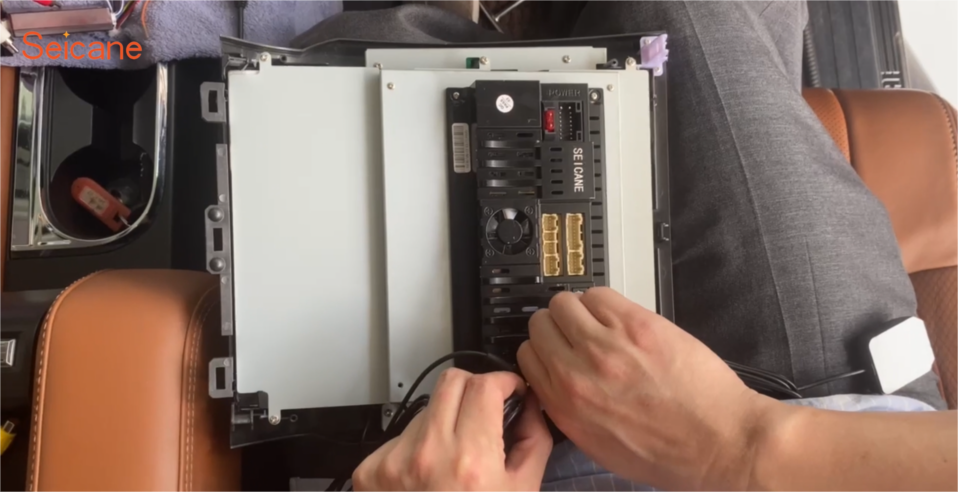
Connect the new smart screen’s wiring harness to the factory connectors. Be sure to attach the CANBUS box, GPS antenna, USB cables, and video/audio inputs as per the wiring diagram.
Step 4: Refit the Cigarette Lighter Panel
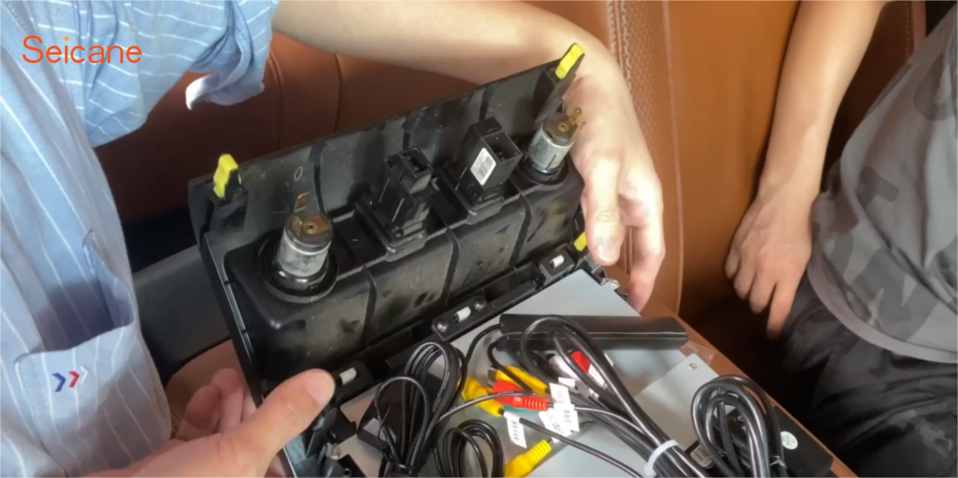
Transfer the factory cigarette lighter module to the new unit’s panel. Ensure all clips align and that ports are accessible once the unit is installed.
Step 5: Secure the New Head Unit
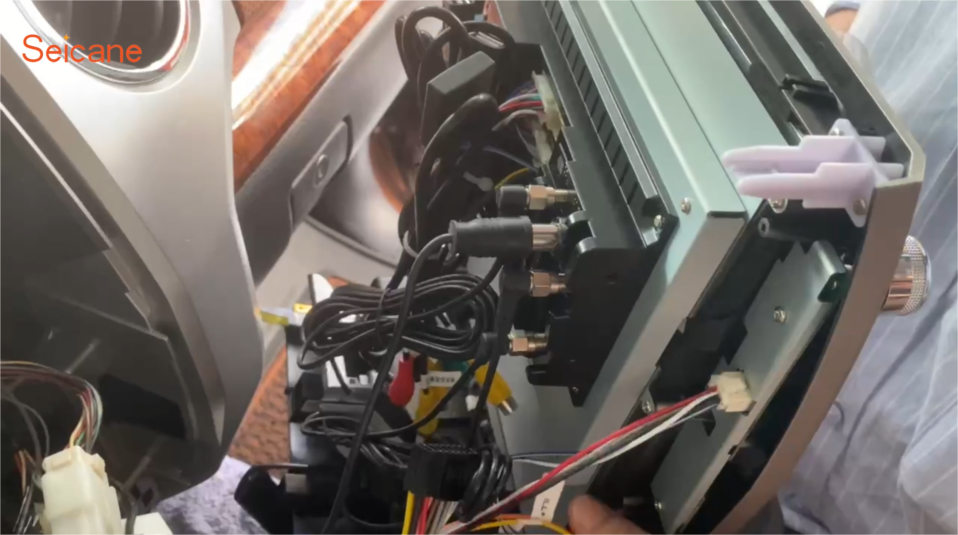
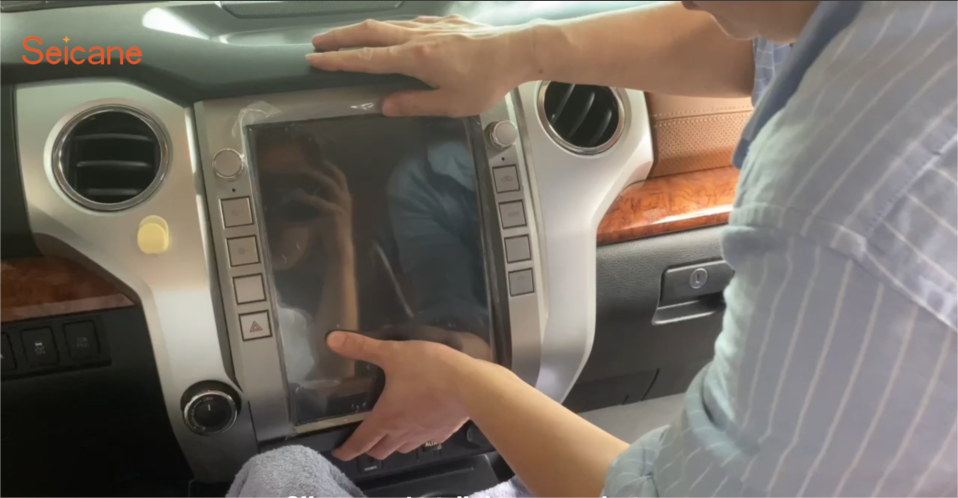
Reconnect all wiring into the back of the smart head unit. Carefully slide it into the dashboard cavity. Reattach with factory screws and test screen alignment and power-on behavior.
Step 6: Configure CANBUS Settings
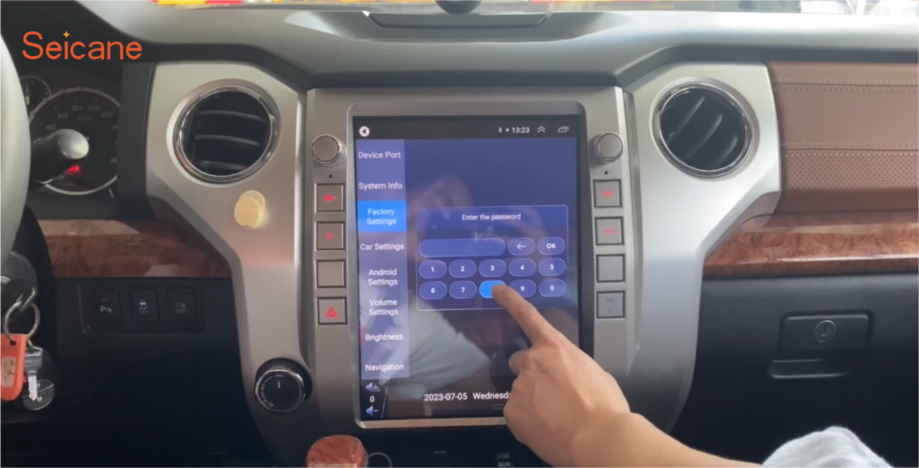
Turn on the head unit and access the factory settings menu. Navigate to the CANBUS configuration page.
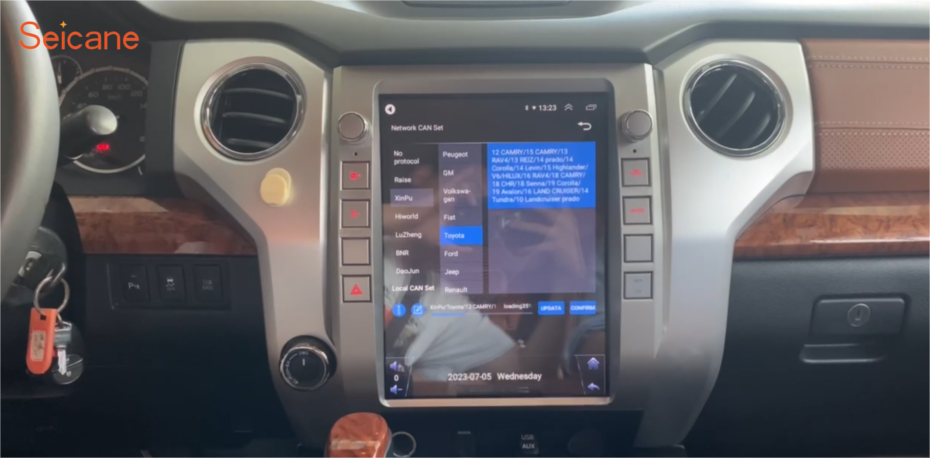
Select the correct car brand and model year to match your Tundra’s configuration. This ensures proper control of air conditioning, door locks, and steering wheel buttons.
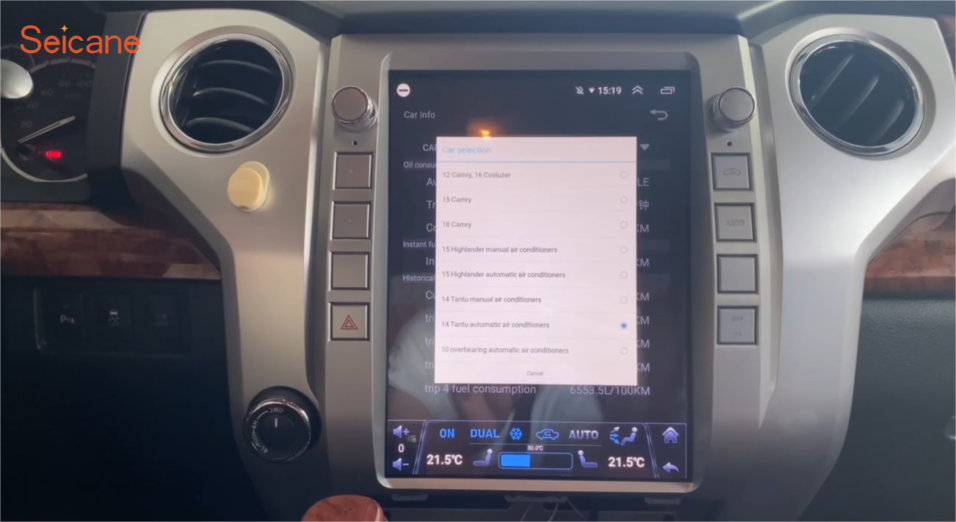
Enter the OIL settings to fine-tune the system behavior for your Tundra. This completes the synchronization process between the vehicle and the new system.
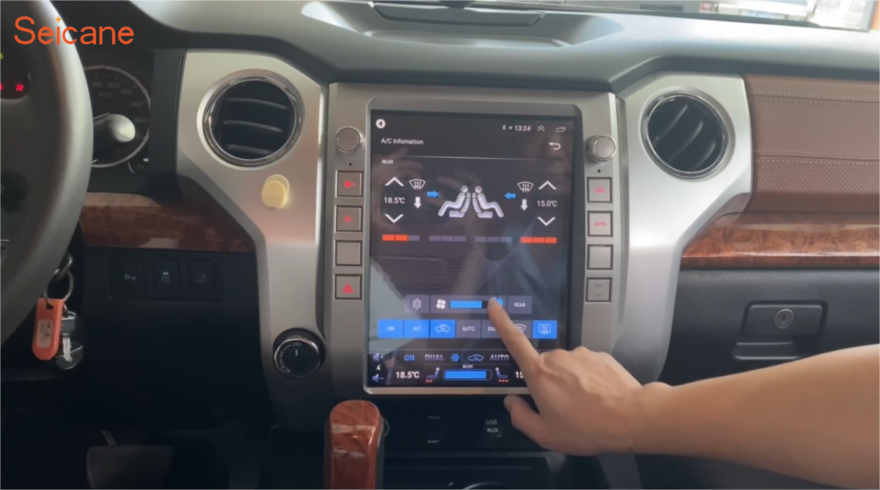
Once settings are saved, your climate control, reverse sensors, and steering controls should function normally.
Step 7: Explore Real-World Features
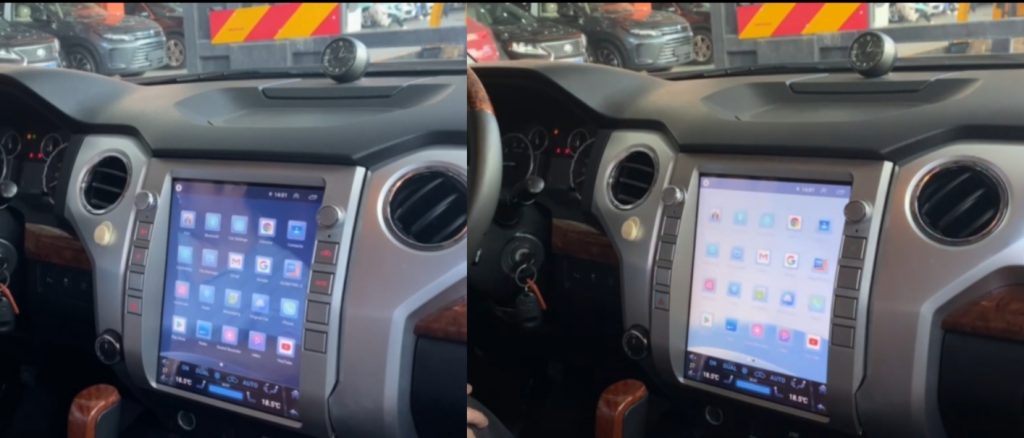
This smart unit is equipped with a light sensor that enables automatic switching between day and night modes. As ambient light changes, the interface dims or brightens accordingly—great for late-night drives or bright daylight navigation.
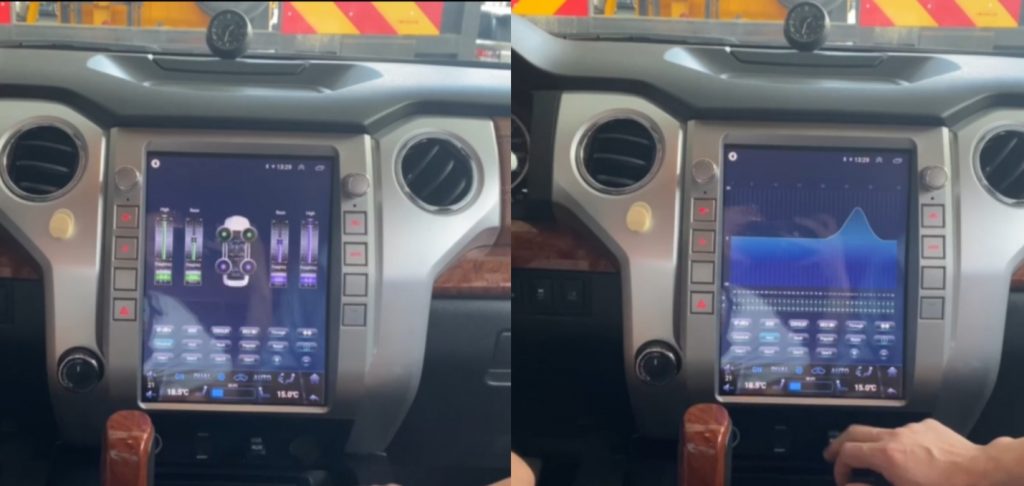
Use the built-in DSP processor to fine-tune your sound experience. Adjust bass, treble, and balance using the custom EQ interface. Whether you’re into podcasts or bass-heavy tracks, it adapts to your style.
Step 8: Test Smart Functions
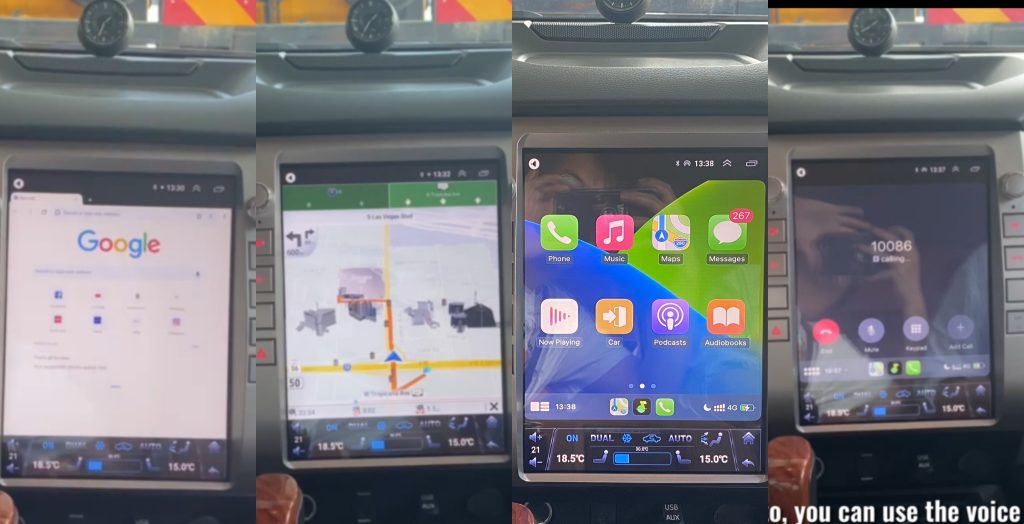
Now it’s time to enjoy what you came for: seamless connectivity. Launch Apple CarPlay or Android Auto wirelessly and explore apps like Google Maps, Spotify, YouTube Music, or your favorite podcasts—all hands-free via voice assistant. Navigation is smooth and accurate, with real-time traffic support via Google search and built-in GPS modules.
- Local and online music playback
- FM/AM/RDS radio streaming
- Bluetooth calling with contact sync
- Screen mirroring for select apps
- Over-the-air firmware updates (if supported)
Don’t forget: if you need to activate intelligent voice features like Toppal AI Assistant, refer to our dedicated guide here: How to Activate Toppal AI in One Minute.
Frequently Asked Questions (FAQ)
Is this screen compatible with all Toyota Tundra models?
This smart screen is specially designed for Toyota Tundra models from 2014 to 2018. For newer or older models, please consult with carmp5.com customer service to confirm compatibility before purchase.
Can I install the smart screen myself without professional help?
Yes, the installation is designed with DIY users in mind. However, basic knowledge of car audio and access to trim tools are recommended. If you’re unsure, seek help from a local car audio technician.
Will the installation affect my original vehicle warranty?
In most cases, installing an aftermarket stereo does not void your car’s factory warranty. However, it’s best to verify with your dealer or consult warranty documentation for clarity.
Does it support both wired and wireless CarPlay?
Yes. This unit supports both wired and wireless Apple CarPlay as well as Android Auto, depending on your phone model and settings.
What if the steering wheel buttons don’t work after installation?
Make sure CANBUS settings are properly configured based on your car’s model and year. If needed, refer back to the CANBUS setup section or reach out to FixMyDash for remote technical support.
What’s included in the box?
The box typically includes the smart screen unit, power harness, CANBUS box, GPS antenna, USB cables, and installation accessories. Some models also include external mic and RCA AV cables.
Do I need to purchase the camera system separately?
Yes, if you want a 360° surround view or AHD backup camera functionality, those components are sold separately. Compatible camera kits are available at carmp5.com.
Where can I find firmware updates?
Firmware and software updates can be requested through customer service. In some cases, over-the-air (OTA) updates are also supported depending on the model.
Final Thoughts: A Worthy Upgrade for Every Tundra Owner
Upgrading your Toyota Tundra with a smart Android screen is more than a tech refresh—it’s a functional transformation. From modern app integration and GPS accuracy to real-time voice assistance and customizable audio, this upgrade delivers luxury-level connectivity at a fraction of OEM costs.
With intuitive installation steps, broad feature compatibility, and responsive support from platforms like carmp5.com, ikagoo.com, and fixmydash.com, there’s no reason to wait. Whether you’re prepping for a road trip, upgrading for resale value, or simply craving smarter driving, this guide provides everything you need.
If you’re a repair shop, reseller, or enthusiast, be sure to follow our blog for more detailed walkthroughs, product reviews, and real user installation stories.
👉 Need more installation help? Read: How to Activate Toppal AI | Best Android Stereos for Road Trips
Showing 1–4 of 9 resultsSorted by popularity
-
Sale!

21.6″/23.6″ Dual-Screen Android 12 8+128GB Wireless CarPlay/Auto
USD390.00 USD545.00Price range: USD390.00 through USD545.00Select options This product has multiple variants. The options may be chosen on the product page -
Sale!
7″ Toyota-Universal Android 13 4+64GB Wireless CarPlay
USD80.92 USD174.20Price range: USD80.92 through USD174.20Select options This product has multiple variants. The options may be chosen on the product page -
Sale!
FYT-7862S 9″/10″ Android 13 8+128GB QLED 2K Wireless CarPlay
USD168.00 USD258.00Price range: USD168.00 through USD258.00Select options This product has multiple variants. The options may be chosen on the product page -
Sale!
FYT-7862S 9″/10″ Android 13 QLED 8+128GB QLED Wireless CarPlay
USD148.00 USD238.00Price range: USD148.00 through USD238.00Select options This product has multiple variants. The options may be chosen on the product page